Most MCP servers today run the same way: your AI client spawns npx something or uvx something directly on your laptop, and that process runs with your user, your filesystem, your credentials, and your network. We spend a lot of time arguing about which tools an agent should be allowed to call, and almost no time on the fact that the server exposing those tools is an unsandboxed process sitting right next to your SSH keys.
Containerizing MCP servers fixes most of that. And on a Mac, there's now a genuinely interesting way to do it: Apple's own container tool, which hit 1.0.0 in June 2026. It runs every container in its own lightweight VM - which means every MCP server gets a hypervisor boundary, not just a namespace one.
Why put an MCP server in a container at all?
Three reasons, in increasing order of how much I care about them:
- Dependency hygiene:
uvxandnpxare great for demos and terrible as a long-term way to run software. Every MCP server drags its own Python/Node version and dependency tree onto your machine. A container pins all of it. - Reproducibility: "Works on my machine" is bad enough for apps. For MCP servers it's worse, because the failure mode is an agent silently missing a tool mid-conversation. The image is the same everywhere.
- Blast radius: This is the big one. An MCP server is code that an AI model actively drives. If that server has a bug, an over-broad tool, or a prompt-injection-shaped hole, the damage is bounded by whatever the process can touch. On a bare laptop, that's everything. In a container, it's whatever you explicitly mounted and whatever network you explicitly gave it.
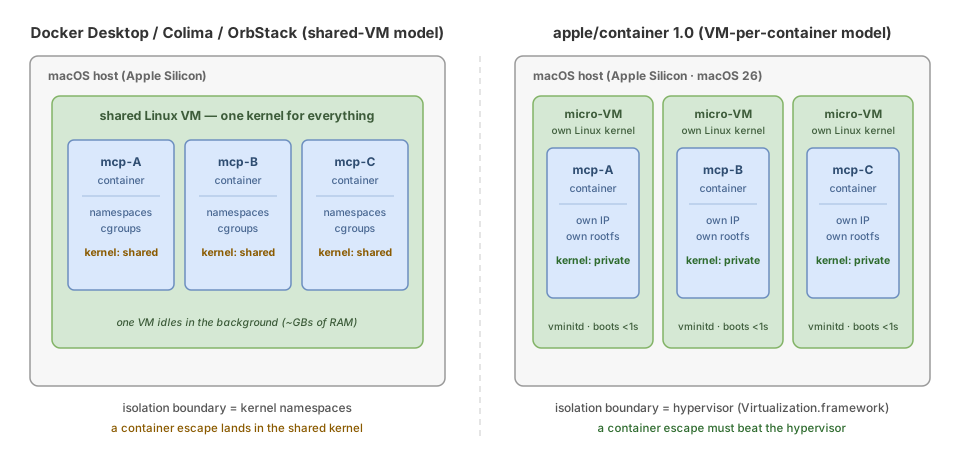
Docker Desktop, Colima, and OrbStack all run your containers inside one shared Linux VM - containers isolated from each other with kernel namespaces, same as on a Linux host. Whereas Apple inverted the model: each container boots its own micro-VM with its own kernel (an optimized Kata-family kernel, booted by a tiny Swift init called vminitd). A container escape now has to beat a hypervisor, not just cgroups.
It boots in under a second, so it doesn't feel like a VM. It just is one.
Prerequisites and install
What you need:
- Apple Silicon(M1 or newer). Intel Macs are not supported, full stop.
- macOS 26 (Tahoe) for the full experience. It technically runs on macOS 15, but networking is significantly limited there, and Example 3 below won't work.
Install Containers:
Grab the signed .pkg from the releases page and double-click it, or:
brew install --cask container
Then start the runtime services (this launches container-apiserver as a launch agent - you may need to re-run it after a reboot):
container system start
First run will offer to fetch the Linux kernel it uses for the micro-VMs. You can verify:
container --version
container run --rm docker.io/library/alpine:latest echo "hello from a micro-VM"
If the message is printed, you're in business.
The fully qualified image name -
containeris stricter than Docker about registries;alpine:latestalone sometimes resolves, but `docker.io/library/alpine:latest' always does.
Example 1 - A stdio MCP server in a container
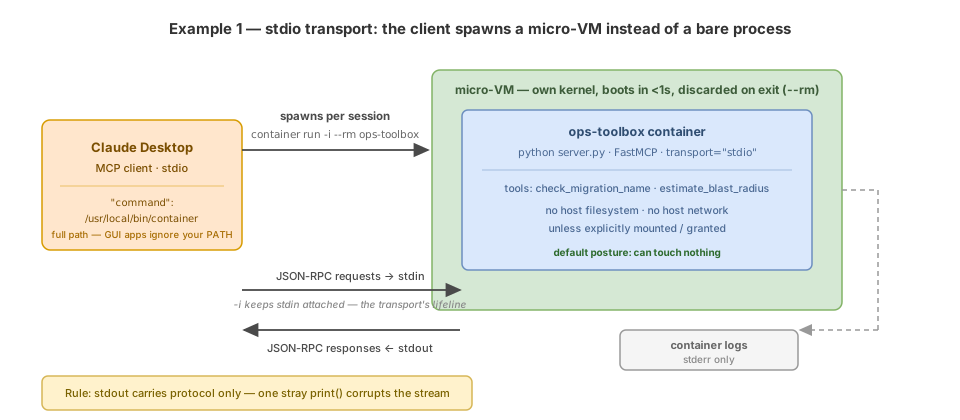
stdio is still the default transport for local MCP servers: the client spawns a process and speaks JSON-RPC over stdin/stdout. The trick to containerizing it is realizing that "spawn a process" can just as easily be "spawn a container with stdin attached."
Step 1: Write the server
A minimal FastMCP server (server.py):
from mcp.server.fastmcp import FastMCP

mcp = FastMCP("ops-toolbox")

@mcp.tool()
def check_migration_name(filename: str) -> str:
    """Validate that a migration file follows the V<version>__<description> naming convention."""
    import re
    if re.match(r"^V\d+__[a-z0-9_]+\.sql$", filename):
        return f"'{filename}' is valid."
    return f"'{filename}' is INVALID. Expected format: V001__add_users_table.sql"

@mcp.tool()
def estimate_blast_radius(table: str, operation: str) -> str:
    """Rough risk rating for a DB operation on a table."""
    risky = {"drop", "truncate", "alter"}
    level = "HIGH" if operation.lower() in risky else "LOW"
    return f"{operation.upper()} on '{table}': {level} risk."

if __name__ == "__main__":
    mcp.run(transport="stdio")
One rule that matters more inside a container than outside: never print to stdout. stdout is the protocol channel in stdio transport. One stray print("debug") and your client sees corrupted JSON-RPC. Log to stderr, always.
Step 2: Write the Dockerfile
Yes, apple/container consumes plain Dockerfiles - no new format to learn:
FROM python:3.12-slim

WORKDIR /app
RUN pip install --no-cache-dir "mcp[cli]"
COPY server.py .

CMD ["python", "server.py"]
Stick to slim/alpine bases with this tool. Its image unpacker (a userspace ext4 writer, in Swift) is slow on multi-gigabyte kitchen-sink images with hundreds of thousands of files. You shouldn't be shipping those anyway.
Step 3: Build
container build -t ops-toolbox .
Step 4: Test it by hand before touching any client
echo '{"jsonrpc":"2.0","id":1,"method":"initialize","params":{"protocolVersion":"2025-03-26","capabilities":{},"clientInfo":{"name":"manual-test","version":"0.1"}}}' \
  | container run -i --rm ops-toolbox
The -i flag is doing all the work here - it keeps stdin open and attached, which is the entire lifeline of stdio transport. You should get back an initialize result with the server info. If you get nothing, check container logs and make sure your server isn't writing anything non-protocol to stdout.
Step 5: Wire it into Claude Desktop (or any stdio client)
Update your claude_desktop_config.json:
{
  "mcpServers": {
    "ops-toolbox": {
      "command": "/usr/local/bin/container",
      "args": ["run", "-i", "--rm", "ops-toolbox"]
    }
  }
}
Two details that will save you a restart-loop:
- Use the full path:
**/usr/local/bin/container**, GUI apps on macOS don't inherit your shell'sPATH, and a barecontainerwill fail silently. **--rm**means every conversation gets a fresh container, and dead containers don't pile up. Since these micro-VMs boot in well under a second, the spawn cost is a non-issue.
Restart Claude Desktop, and the tools show up like any other MCP server - except now the server is running inside its own VM with no access to your home directory unless you mount one (--volume $HOME/some/dir:/data, and only that dir).
Example 2 - A Streamable HTTP MCP server in a container
Streamable HTTP is the transport you actually want for anything long-lived: one endpoint, plain HTTP POST for messages, an optional SSE-mode response stream when the server needs to push. (Side note, because this confusion refuses to die: "SSE is deprecated" refers to the old dual-endpoint HTTP+SSE architecture from the 2024 spec. SSE the wire format is alive and well inside Streamable HTTP.)
HTTP transport + containers is a natural fit - the server becomes a normal network service you start once and point any number of clients at.
Step 1: The server
Same toolbox, different transport (server_http.py):
from mcp.server.fastmcp import FastMCP

mcp = FastMCP("ops-toolbox-http", host="0.0.0.0", port=8000)

@mcp.tool()
def check_migration_name(filename: str) -> str:
    """Validate that a migration file follows the V<version>__<description> naming convention."""
    import re
    if re.match(r"^V\d+__[a-z0-9_]+\.sql$", filename):
        return f"'{filename}' is valid."
    return f"'{filename}' is INVALID. Expected format: V001__add_users_table.sql"

if __name__ == "__main__":
    mcp.run(transport="streamable-http")
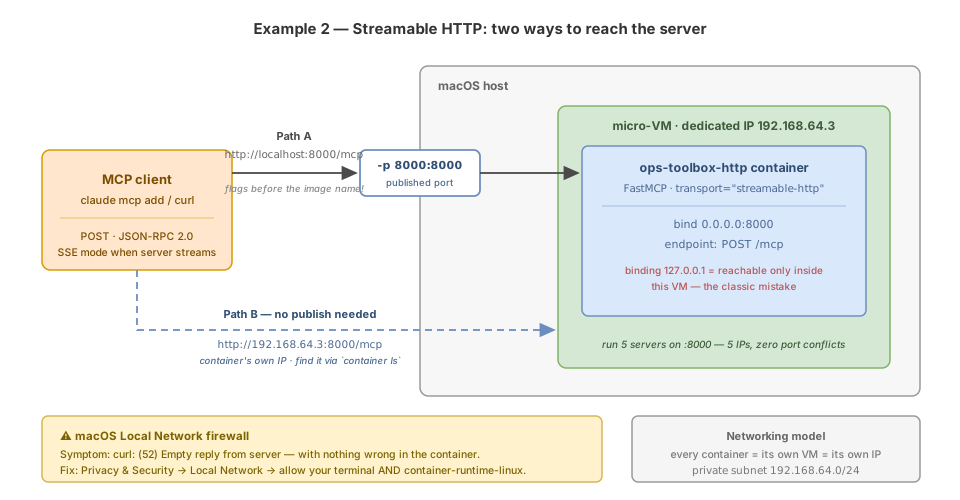
host="0.0.0.0" is non-negotiable in a container. Bind to 127.0.0.1 and the server is only reachable from inside its own VM - the classic containerized-service mistake, and with one-VM-per-container it's even more literal here.
Step 2: Dockerfile
FROM python:3.12-slim

WORKDIR /app
RUN pip install --no-cache-dir "mcp[cli]"
COPY server_http.py .

EXPOSE 8000
CMD ["python", "server_http.py"]
Step 3: Build and run
container build -t ops-toolbox-http .
container run -d --name mcp-http -p 8000:8000 ops-toolbox-http
⚠️ Flag order matters. In
apple/container, anything after the image name is treated as a pass-through argument to the container.container run image -p 8000:8000will not publish anything and will not warn you. Flags first, image last.
Step 4: Two ways to connect
Option A: Using published port with -p 8000:8000, the endpoint is:
http://localhost:8000/mcp
Option B: Using the container's own IP, because every container is its own VM, every container gets a dedicated IP on a private subnet (typically 192.168.64.0/24):
container ls

# NAME       IMAGE               STATE    ADDR
mcp-http   ops-toolbox-http    running  192.168.64.3
Then hit http://192.168.64.3:8000/mcp directly. No port publishing, no port conflicts ever - run five MCP servers all listening on 8000 and they simply coexist on five IPs. This is how container networking works on a real Linux box, and it's genuinely pleasant once your fingers unlearn -p.
Step 5: Smoke test
curl -X POST http://localhost:8000/mcp \
  -H "Content-Type: application/json" \
  -H "Accept: application/json, text/event-stream" \
  -d '{"jsonrpc":"2.0","id":1,"method":"initialize","params":{"protocolVersion":"2025-03-26","capabilities":{},"clientInfo":{"name":"curl","version":"0"}}}'
You should get an initialize result back. If instead you get curl: (52) Empty reply from server - don't debug your server, debug macOS. The Local Network privacy firewall in macOS 26 blocks apps from talking on the local network until you allow it. Fix: System Settings → Privacy & Security → Local Network, toggle ON both your terminal app and container-runtime-linux, then fully quit and reopen the terminal. This one cost me real time; the failure gives you zero hint that it's an OS-level permission.
Step 6: Connect a client
claude mcp add --transport http ops-toolbox http://localhost:8000/mcp
or in a config-file-based client:
{
  "mcpServers": {
    "ops-toolbox": {
      "type": "http",
      "url": "http://localhost:8000/mcp"
    }
  }
}
Ongoing lifecycle is what you'd expect:
container logs -f mcp-http     # follow logs
container stop mcp-http        # stop
container rm mcp-http          # remove
The gotcha list, condensed
Everything above that bit me, in one place:
| Gotcha | Symptom | Fix |
|---|---|---|
| Flags after image name | -p silently ignored | All flags before the image name |
| macOS Local Network firewall | curl: (52) Empty reply | Allow terminal + container-runtime-linux in Privacy & Security → Local Network |
| GUI apps don't see your PATH | Claude Desktop can't spawn server | Use /usr/local/bin/container in the config |
| stdout in stdio transport | Client sees corrupted JSON-RPC | Log to stderr only |
| Binding to 127.0.0.1 | HTTP server unreachable | Bind 0.0.0.0 inside the container |
| Default VM resources | OOM on heavier servers | --memory 2g --cpus 2 (defaults: 1 GiB / 4 CPUs) |
| Huge images unpack slowly | Multi-minute first run | Use slim base images |
| No Compose | Multi-service = manual wiring | container network create + a small shell script, or wait — Compose support is the most-requested issue upstream |
| Reboot | container commands fail | container system start again |
Should you actually use this?
Honestly?
Use apple/container for MCP servers: if you're on Apple Silicon + macOS 26, you're running one-to-a-few servers, and you care about isolation - especially if agents execute semi-trusted code through your tools. The per-container-VM boundary is a real security upgrade over shared-kernel setups, and losing Docker Desktop's ~2 GB idle RAM tax is a nice bonus.
Stick with Docker/OrbStack: if your local setup is a ten-service Compose file, you're on an Intel Mac, or you're on an older macOS. No shame in it; the ecosystem gap is real.
The bigger point stands regardless of runtime, MCP servers are workloads and deserve workload-grade isolation. We containerized our apps years ago. The tools our agents call shouldn't be the last unsandboxed processes on the laptop.